Guide
How to Connect an iPhone to a Projector: HDMI Cable or AirPlay
There are two ways to get an iPhone's picture out of a projector: a cable, or AirPlay. Both work. They are good at different things, and choosing the wrong one is the most common reason a first evening with a projector goes badly.
This guide covers both, step by step, with what to buy, and then which to choose — for films, and for projection mapping, where the answer is not the same.
The short answer
| HDMI cable | AirPlay | |
|---|---|---|
| What you need | An HDMI adapter and an HDMI cable | Wi-Fi, and a projector or receiver with AirPlay |
| Delay | Almost none | A short one, always |
| Picture | Exact | Compressed, like video |
| Reliability | Works every time | Depends on the Wi-Fi |
| Freedom to move | The length of the cable | The whole room |
| Best for | Fitting light to objects, live control | Watching a finished show |
With a cable
What to buy
The adapter depends on the socket at the bottom of your iPhone.
- USB-C — iPhone 15 and later. Any USB-C to HDMI adapter that carries video works, and so does a single USB-C to HDMI cable, which is adapter and cable in one. Apple's own is the USB-C Digital AV Multiport Adapter; it also has a socket for the charger, which matters for a long evening.
- Lightning — iPhone 14 and earlier. A Lightning video adapter. Apple's Lightning Digital AV Adapter is the safe choice. Cheap ones are a gamble: some work, some stop working after an iOS update.
Then one ordinary HDMI cable, as long as you need to stand where you want to stand. Two or three metres is comfortable.
The steps
- Plug the adapter into the iPhone.
- Connect the HDMI cable from the adapter to the projector.
- On the projector, choose that HDMI input.
- The projector now shows the iPhone's screen.
No Wi-Fi is needed, and there is nothing to set up on the phone.
Two things that make it better
- Game mode. Many projectors process the picture before showing it, which adds delay. If yours has a game mode, or a low-latency setting, turn it on.
- Power. Driving a projector for an hour uses battery. An adapter with a charging socket lets the phone charge while it plays.
With AirPlay
What you need
AirPlay needs something at the projector's end that speaks it:
- A projector with AirPlay built in. Check its box or manual for the word AirPlay. A projector having Wi-Fi does not mean it supports AirPlay.
- A projector with an AirPlay app. Some smart projectors receive AirPlay through an app of their own, which has to be open and on screen before the projector appears on the iPhone.
- An AirPlay receiver in the HDMI input. An Apple TV plugged into the projector turns any projector into an AirPlay one.
The steps
- Connect the iPhone and the projector, or the receiver, to the same Wi-Fi network.
- If the projector's AirPlay comes from an app, open it on the projector.
- On the iPhone, open Control Center, press Screen Mirroring and choose the projector.
- If a code appears on the wall, type it on the iPhone.
What to expect
AirPlay sends the screen as compressed video over Wi-Fi. Two things follow. The picture arrives a little late — a fraction of a second, more on a busy network — and fine detail is slightly softened, most visibly in thin bright lines on black.
For a film, neither matters. For dragging a corner onto the edge of a picture frame, the delay does: you move, and the wall answers afterwards.
Which one for projection mapping?
Projection mapping has two phases, and they ask for different things.
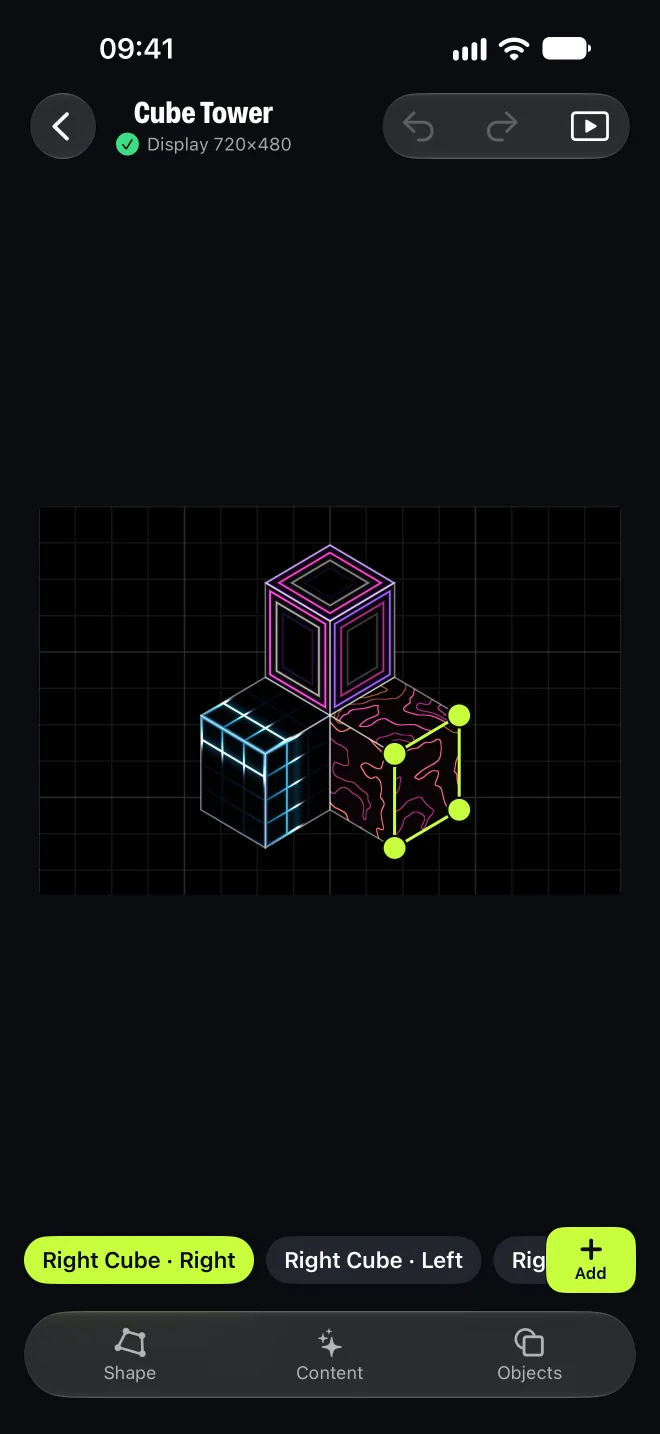
Fitting is when you drag each object's corners until the light sits exactly on the real thing. You are looking at the wall while your finger moves, so every bit of delay is felt. Use the cable.
The show is when everything is in place and simply plays. Delay no longer matters, and being free of the cable is pleasant. AirPlay is fine.
If you only want one way, make it the cable. It works with every projector that has an HDMI input, in a field with no Wi-Fi, and it behaves the same every time.
What appears on the wall
By default an iPhone mirrors: the projector shows a copy of the phone's screen, bars at the sides and all.
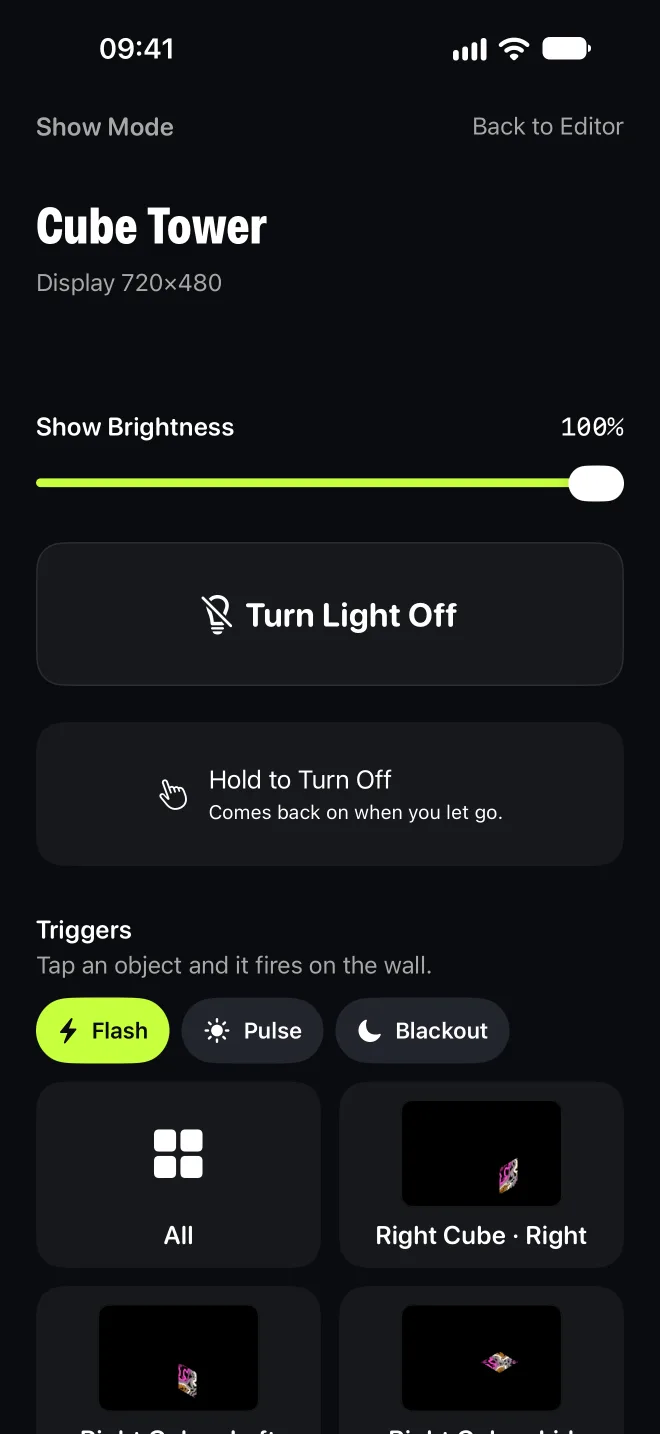
Some apps do more. They treat the projector as a second screen and send it its own picture, keeping the controls on the phone. A film app shows the film on the wall and the play button in your hand. SoloLight does the same for light: the show goes to the wall at the projector's full size, and the editor stays on the phone.
So if you connect and see your home screen on the wall, nothing is wrong. Open the app, and open a show.
When it does not work
Nothing appears over HDMI.
Check the projector is on the right HDMI input. Then suspect the adapter: one made for charging only carries no video. Try the adapter with a television to be sure.
The projector does not appear in Screen Mirroring.
It is not on the same Wi-Fi as the iPhone, or it does not support AirPlay, or its AirPlay app is not open. Guest networks often stop devices from seeing each other; use the main one.
AirPlay stutters or drops.
Move the iPhone and the projector closer to the router, or switch to the cable. A phone's personal hotspot is a poor network for AirPlay.
The picture has black bars.
You are mirroring: the phone's tall screen is being fitted into the projector's wide one. An app that uses the projector as a second screen fills it.
The picture is a trapezoid.
The projector is aimed at an angle. For a film, use the projector's keystone setting. For projection mapping, leave keystone off and fit each object by its corners instead; it is sharper, and it fits one object at a time.
The sound comes from the wrong place.
Over HDMI and AirPlay the sound follows the picture to the projector. Its speaker is probably small: connect a speaker to the projector, or choose another output on the iPhone.
Questions people ask
Can I connect an iPhone to any projector?
Yes, if it has an HDMI input: use an HDMI adapter for your iPhone and an HDMI cable. Without a cable, the projector, or a receiver plugged into it, must support AirPlay.
Which adapter do I need?
For an iPhone with USB-C, a USB-C to HDMI adapter or cable that supports video. For an iPhone with Lightning, a Lightning video adapter.
Is HDMI or AirPlay better?
HDMI is more reliable and has almost no delay. AirPlay is more convenient, and a little late.
Do I need Wi-Fi?
Not with a cable. AirPlay needs both devices on the same network.
Can I charge the iPhone while it is connected?
Yes, with an adapter that has a charging socket, or over AirPlay with the charger plugged in as usual.